

Picking where to stay is one of those travel decisions that looks simple on the surface and turns out to matter more than almost anything else about a trip. I’ve stayed in beautifully reviewed hotels in the wrong part of a city and spent half my time in taxis. I’ve also booked a very ordinary room in exactly the right neighborhood and had one of the best trips of my life because everything I wanted was a ten-minute walk away.
The neighborhood shapes your entire experience: the restaurants you wander into, the morning coffee run, how safe you feel walking back after dinner, whether you’re spending your time actually exploring or just commuting between your hotel and the interesting parts of town.
The problem is that when you’re planning a trip somewhere unfamiliar, it’s genuinely hard to know which neighborhoods are worth being in. Travel blogs help, but they’re often outdated or too broad to be useful at the street level. This is where Google Maps comes in, not just as a navigation tool, but as one of the most useful pre-trip planning resources available, and most people use about 10% of what it can do.
Here’s how I use it, from the initial neighborhood scan all the way through to downloading offline maps before I fly.
Why the Neighborhood You Stay In Changes Everything
Before getting into the how, it’s worth being clear about why this matters. Where you stay in a city affects almost every part of your daily experience while you’re there.
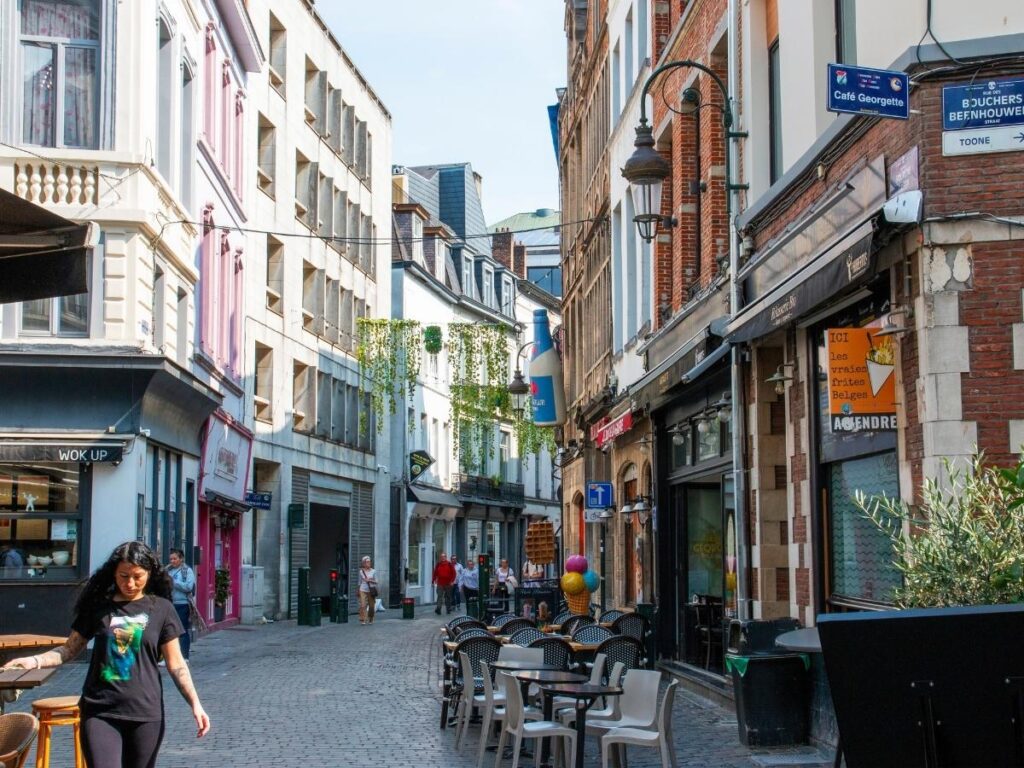
A hotel that’s genuinely well-located means less time and money spent on transport, more spontaneous exploration on foot, and a feel for the city that you simply don’t get from a room in a quiet suburb or a business district that empties out after 6pm. The best meals I’ve had on trips weren’t at restaurants I planned. They were places I walked past at the right moment because I was staying somewhere where interesting things were happening around me.
Neighborhood character also varies enormously within cities. In Lisbon, Alfama and Bairro Alto have completely different atmospheres despite being a short walk apart. In Bangkok, staying near the old town feels nothing like staying near Sukhumvit. Getting this right before you book, rather than after you’ve already committed to a property, is worth investing twenty minutes of research time.
The Google Maps Areas of Interest Trick
This is the core of what the original tip is about, and it’s genuinely useful once you know what to look for. Open Google Maps on your phone or desktop and search for the city you’re planning to visit. Then start zooming in on the map itself, not into specific venues, just zooming in on the city at a neighborhood level.
As you zoom in, you’ll start to see areas of the map highlighted in a pale yellow colour. These are Google’s Areas of Interest, commercial zones where a high density of restaurants, bars, shops, and attractions are clustered. Google builds these from a combination of business listings, user activity data, and foot traffic patterns, so they reflect where people actually spend time in that city, not just where the tourist brochure says you should go.
The pale yellow zones are your starting point for identifying which neighborhoods are worth being near. In most cities, you’ll see several distinct clusters rather than one big zone, and the pattern they form tells you something useful about how the city is laid out and where the activity actually concentrates.
I use this as my first step before I look at a single hotel listing. It gives me a framework for understanding the city’s geography before I start making accommodation decisions.
How to Read the Yellow Zones on Google Maps
Not all yellow is the same on Google Maps, and the distinction is worth understanding before you make decisions based on it.
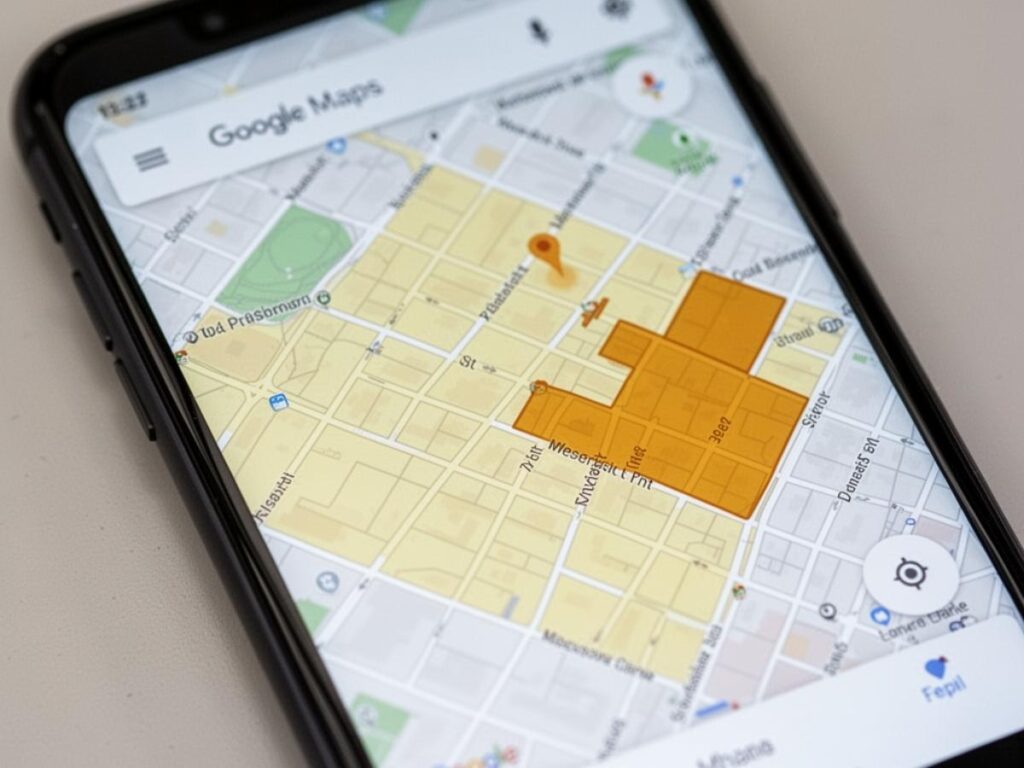
The lighter yellow zones typically indicate high concentrations of well-established venues: restaurants, cafes, shops, cultural sites, and attractions. These are areas with consistent foot traffic and a range of things to do at different times of day. For most travelers, being close to a light yellow zone means being close to the kind of street-level activity that makes a city feel alive and accessible.
The darker yellow or amber zones tend to indicate areas of particularly high real-time foot traffic, often commercial centres, transport hubs, or nightlife districts that get very busy at specific times. These are great to be near but not necessarily to be right in the middle of, depending on what kind of stay you’re looking for. A hotel on the edge of a busy nightlife zone might be perfect if you’re there for the energy, or genuinely difficult if you’re a light sleeper.
Zoom in and out a few times as you look at these zones. At a high zoom level you get the big picture of which neighborhoods cluster with activity. As you zoom in further, the individual businesses that make up those clusters become visible, and you start getting a real sense of what’s actually there: whether it’s mostly restaurants, mostly shops, a mix of cultural venues, or primarily bars and late-night venues.
Staying In the Action vs Staying Just Outside It
One of the most useful things the Areas of Interest map does is help you make a deliberate choice about your relationship to the busy parts of a city, rather than making that choice accidentally.
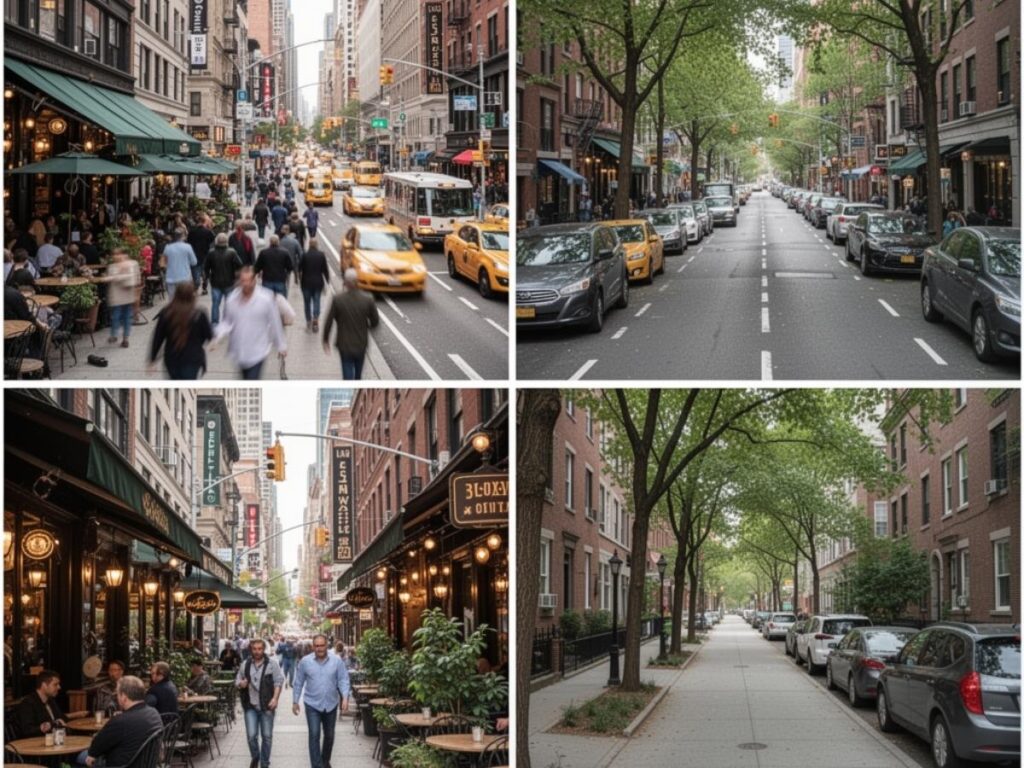
Staying right inside a busy yellow zone puts you at the centre of the action. Everything is on your doorstep, the noise, the energy, the restaurants, the morning market, and the 1am bar crowd. For a short trip where you want maximum immersion with minimum transit time, this is usually the right call.
Staying on the edge of a yellow zone, or one street back from the main activity corridor, gives you a different experience. You’re close enough to walk to everything that matters in five to ten minutes, but you’re not absorbing the full noise and foot traffic of the busiest streets. I’ve found this to be the sweet spot for most of my trips, particularly in cities like Rome, Barcelona, or Marrakech where the central zones can feel overwhelming to actually sleep in.
Staying outside the yellow zones entirely is a legitimate choice too, particularly if you want a quieter residential experience, if you’re traveling with children, or if the budget works out significantly better a few streets further from the tourist centre. The key is making that choice deliberately, with full awareness of what the trade-off is, rather than booking on price alone and being surprised by the commute.
Using Google Maps Layers to Research a Neighborhood
The Areas of Interest colour overlay is a starting point, but Google Maps has additional layers and search features that help you build a much more detailed picture of a neighborhood before you commit to staying there.
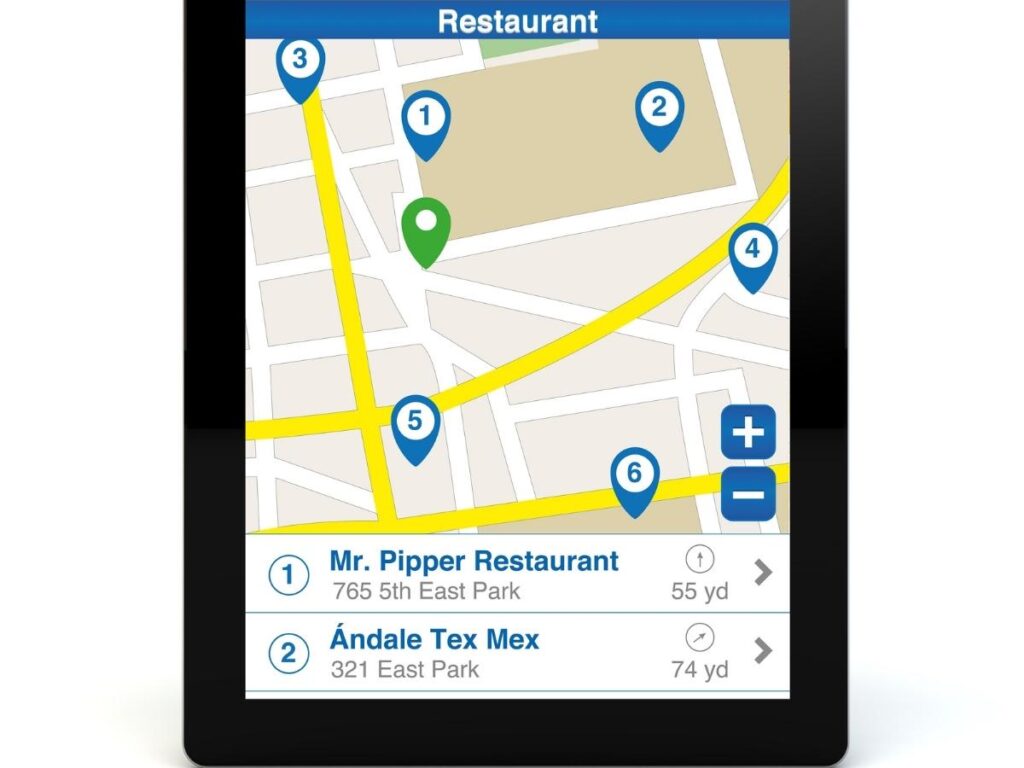
Search for specific things you care about. Once you’ve identified a neighborhood you’re considering, search for the things that matter most to your trip style: coffee shops, supermarkets, pharmacies, metro stations, running routes, breakfast spots. The density and quality of what comes up tells you a lot about what daily life there actually looks like. A neighborhood with three dozen highly-rated coffee shops within walking distance feels very different from one where the closest option is a twenty-minute walk away.
Check the transit options. Switch to the transit layer on Google Maps and look at what public transport connects your potential neighborhood to the main sights you want to visit. A neighborhood that looks perfectly located on a standard map might require a bus, a transfer, and a walk to reach the things on your itinerary. Understanding this before you book saves you from an unpleasant daily commute that eats into your travel time.
Look at the venue ratings and review counts. As you zoom in on a neighborhood, the venues that appear on the map show ratings and, if you tap them, review counts. A cluster of restaurants with 4.5 stars and hundreds of reviews tells you this is an area where people actively seek out food. A cluster of closed businesses and low-rated fast food options tells a different story. This kind of quick visual scan gives you a ground-level sense of a neighborhood’s character that’s hard to get from any written description.
How to Use Street View Before You Book
This is a Google Maps feature that I use on almost every hotel research session and that very few people think to use for pre-booking research. Street View lets you drop down to street level and look around as if you were standing there, which gives you a quality of information about a neighborhood that no map overlay or review can replicate.
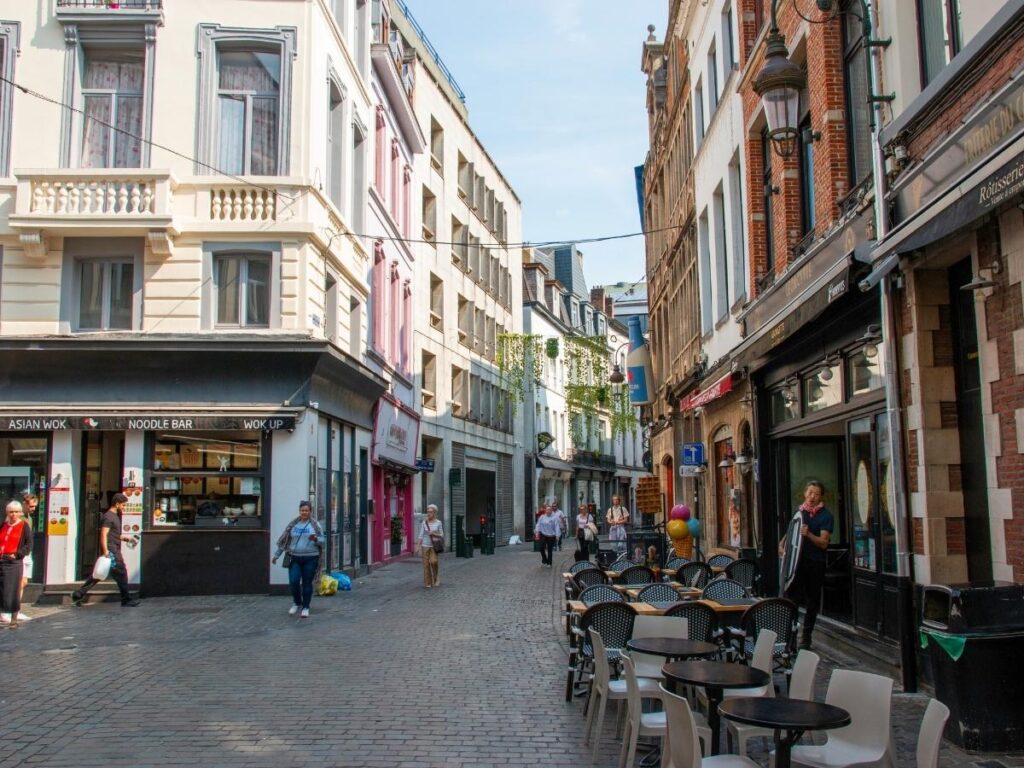
To use it, find the area on Google Maps and drag the little orange person icon (in the bottom right of the screen on desktop) onto any street highlighted in blue. On mobile, tap and hold on a point on the map and then tap the street-level thumbnail that appears. You’re now looking at actual street photography of that location.
Walk the street virtually. Look at the buildings, the shops at street level, the width of the pavements, the state of the street itself. Is it a busy commercial street with lots of foot traffic? A quiet residential lane? A construction zone? Are there green spaces nearby? Does it look like somewhere you’d feel comfortable walking at night?
I’ve used Street View to identify that a hotel whose address looked perfectly central was actually on a narrow, heavily commercial street with a loud market directly outside, and to discover that a property that looked slightly removed from the action on the map was actually on a beautiful tree-lined street with excellent local cafes at ground level. Neither of those things would have been obvious from the map alone.
Street View imagery isn’t always current, and in some parts of the world coverage is patchy, but where it’s available it’s one of the most genuinely useful pre-trip research tools there is.
Saving Your Research With Custom Maps and Lists
Once you’ve done your neighborhood research and identified the hotels and rental properties you’re considering, Google Maps gives you a few ways to save and organise that information so it doesn’t disappear when you close the app.
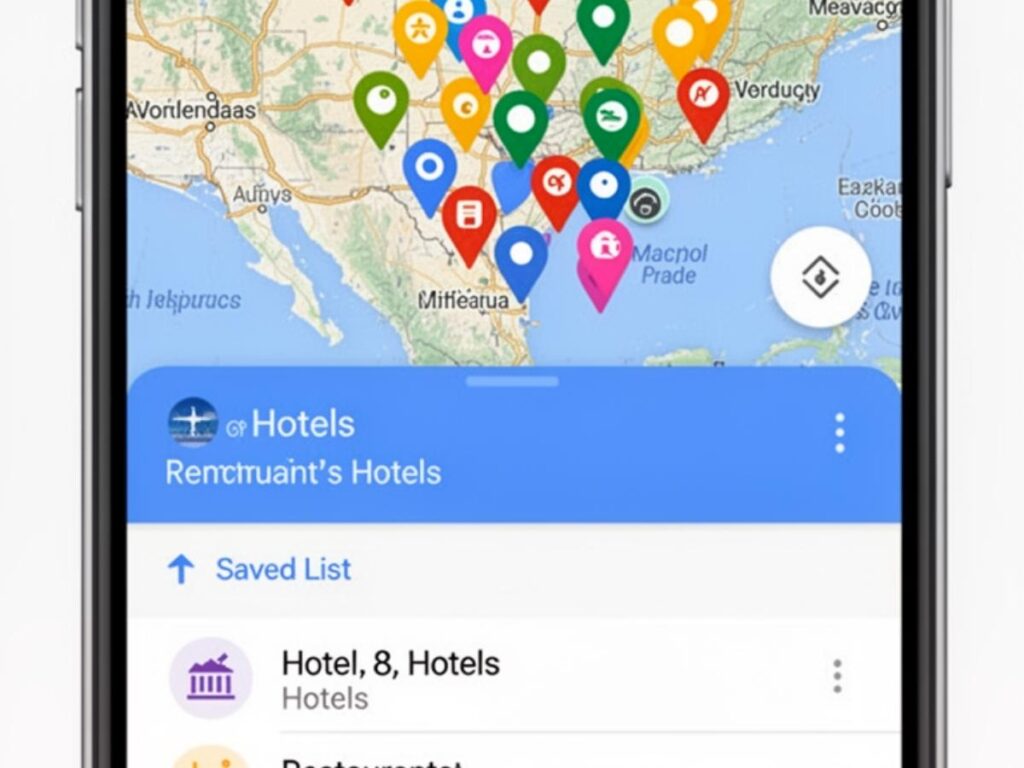
Saved lists are the simplest option. On any venue in Google Maps, tap the save icon and add it to a list. I create a list for each trip called something like “Tokyo 2025: Stay Options” and save the shortlisted hotels to it alongside the restaurants and attractions I’m considering. When I open that list, everything is pinned on a map together, which makes it immediately clear whether my hotel options are actually near the restaurants and sights I care about.
Custom maps (through Google My Maps, accessible from the main Google Maps menu) let you build a more detailed annotated map with colour-coded pins, notes, and layers. For longer or more complex trips, this is worth the extra ten minutes to set up. I use different colours for accommodation options, restaurants I want to try, and key landmarks, which gives me a visual overview of the trip geography that’s much more useful than a list of addresses.
Both saved lists and custom maps sync across your devices and can be shared with travel companions, which makes collaborative trip planning considerably easier.
How to Download Google Maps for Offline Use
This section is straightforward but important: always download the offline map for your destination before you travel. Even cities with reliable mobile coverage have dead spots, underground areas, and moments where your data connection drops at the exact wrong time. An offline map means navigation keeps working regardless.
Here’s how to do it on the Google Maps app:
Tap your profile picture in the top right corner of the app. Select “Offline maps” from the menu. Tap “Select your own map.” You’ll see a box on the map that you can resize and reposition. Zoom and drag until the box covers the area you’ll be moving around in, then tap “Download.”
The downloaded area is then accessible through your offline maps section. When you open Google Maps normally and navigate, it will use the offline data automatically when your connection drops, without you needing to do anything different.
For city trips, I download a map that covers a slightly larger area than I expect to need, including the airport and any day trip destinations. Storage space is cheap and running out of offline map coverage at an inconvenient moment is genuinely frustrating.
One thing to be aware of: offline maps don’t include real-time traffic data, live transit updates, or business hours information. They’re navigation tools, not live data feeds. For anything requiring current information, you’ll need a connection.
What Google Maps Cannot Tell You
Google Maps is an excellent planning tool, but it has real limits that are worth being honest about before you rely on it too heavily.
The Areas of Interest overlay shows you where activity concentrates, but it doesn’t distinguish between the kind of activity. A yellow zone might be dominated by tourist-trap restaurants and souvenir shops, or it might be a genuinely local neighbourhood with excellent food and independent businesses. The map looks the same either way. Reading recent reviews from locals and checking travel forums or recent blog posts for the specific city adds the qualitative layer that the map can’t provide.
Street View imagery can be years out of date. A street that looked pleasant in the imagery might have undergone significant construction or change since the photos were taken. Use it as one data point, not the final word.
Neighborhoods also have character dimensions that no map captures well: the noise level late at night, the smell of a fish market two streets over, whether the area feels welcoming to solo travelers, the specific vibe of a block at 8pm on a Friday. These things come from reviews, from asking people who’ve been recently, and ultimately from being there. Google Maps gets you close. The rest is judgment and a bit of luck.
Final Thoughts
The combination of the Areas of Interest overlay, Street View, venue searches, and offline downloads makes Google Maps one of the most complete free trip planning tools available, and it’s genuinely underused for this purpose. Most people open it to navigate after they’ve already booked. Using it before you book, as a research tool for understanding a city’s geography and character, changes how well your accommodation decision actually serves the trip you’re planning.
Next time you’re shortlisting hotels or rentals for a city you don’t know well, spend twenty minutes with Google Maps before you open a booking site. The neighborhoods that look right on paper look very different at street level, and knowing that before you commit makes a real difference.
How do I use Google Maps to find the best neighborhood to stay in?
Open Google Maps, search for your destination city, and zoom in to neighborhood level. Look for areas highlighted in pale yellow, which Google marks as Areas of Interest with high concentrations of restaurants, shops, and attractions. These zones indicate where activity clusters in the city and are a useful starting point for deciding where to base yourself.
What do the yellow areas on Google Maps mean?
Yellow highlighted areas on Google Maps indicate Areas of Interest, commercial zones with high densities of businesses and foot traffic. Lighter yellow typically marks well-established areas with consistent activity across restaurants, shops, and cultural venues. Darker amber tones can indicate particularly high real-time foot traffic zones like busy transport hubs or nightlife districts.
Can I use Google Maps offline when traveling?
Yes. In the Google Maps app, tap your profile picture, select Offline Maps, then Select Your Own Map. Resize and position the download area over the region you need and tap Download. The offline map works for navigation without a data connection, though it won’t include real-time traffic, live transit updates, or current business hours.
How do I save places on Google Maps for a trip?
Tap the save icon on any venue in Google Maps and add it to a named list. Create a trip-specific list and save all your shortlisted hotels, restaurants, and sights to it. Everything will appear as pins on a map together, making it easy to see how your options relate to each other geographically.
Is Street View on Google Maps useful for hotel research?
Yes, and it’s one of the most underused pre-booking research tools available. Dropping into Street View around a hotel address shows you the actual street character, nearby businesses, the feel of the neighbourhood at street level, and potential issues like construction or heavy traffic that wouldn’t be obvious from the map alone. Note that Street View imagery can be several years old, so treat it as one data point among several.
What are the limits of using Google Maps to choose where to stay?
Google Maps shows where activity concentrates but not the quality or character of that activity. It also can’t capture noise levels, neighbourhood atmosphere, or how an area feels at different times of day. Areas of Interest zones and Street View are excellent starting points, but combining them with recent reviews, travel forums, and destination-specific blog posts gives a more complete picture.